

Getting Started
Welcome to Linkerd! 🎈
In this guide, we’ll walk you through how to install Linkerd into your Kubernetes cluster. Then we’ll deploy a sample application to show off what Linkerd can do.
Installing Linkerd is easy. First, you will install the CLI (command-line interface) onto your local machine. Using this CLI, you’ll then install the control plane onto your Kubernetes cluster. Finally, you’ll “mesh” one or more of your own services by adding Linkerd’s data plane to them.
Step 0: Setup
Before we can do anything, we need to ensure you have access to modern
Kubernetes cluster and a functioning kubectl command on your local machine.
(If you don’t already have a Kubernetes cluster, one easy option is to run one
on your local machine. There are many ways to do this, including
kind, k3d, Docker for
Desktop, and
more.)
You can validate your setup by running:
kubectl version --shortYou should see output with both a Client Version and Server Version
component.
Now that we have our cluster, we’ll install the Linkerd CLI and use it validate that your cluster is capable of hosting the Linkerd control plane.
(Note: if you’re using a GKE “private cluster”, there are some extra steps required before you can proceed to the next step.)
Step 1: Install the CLI
If this is your first time running Linkerd, you will need to download the
linkerd command-line interface (CLI) onto your local machine. The CLI will
allow you to interact with your Linkerd deployment.
To install the CLI manually, run:
curl -sL run.linkerd.io/install | shBe sure to follow the instructions to add it to your path.
Alternatively, if you use Homebrew, you can install the CLI
with brew install linkerd. You can also download the CLI directly via the
Linkerd releases page.
Once installed, verify the CLI is running correctly with:
linkerd versionYou should see the CLI version, and also Server version: unavailable. This is
because you haven’t installed the control plane on your cluster. Don’t
worry—we’ll fix that soon enough.
Step 2: Validate your Kubernetes cluster
Kubernetes clusters can be configured in many different ways. Before we can install the Linkerd control plane, we need to check and validate that everything is configured correctly. To check that your cluster is ready to install Linkerd, run:
linkerd check --preIf there are any checks that do not pass, make sure to follow the provided links and fix those issues before proceeding.
Step 3: Install the control plane onto your cluster
Now that you have the CLI running locally and a cluster that is ready to go, it’s time to install the control plane.
The first step is to install the control plane core. To do this, run:
linkerd install | kubectl apply -f -In this command, the linkerd install command generates a Kubernetes manifest
with all the necessary control plane resources. (Feel free to inspect the
output.) Piping this manifest into kubectl apply then instructs Kubernetes to
add those resources to your cluster.
Now let’s wait for the control plane to finish installing. Depending on the speed of your cluster’s Internet connection, this may take a minute or two. Wait for the control plane to be ready (and verify your installation) by running:
linkerd checkNext, we’ll install some extensions. Extensions add non-critical but often useful functionality to Linkerd. For this guide, we need the viz extension, which will install Prometheus, dashboard, and metrics components onto the cluster:
linkerd viz install | kubectl apply -f - # on-cluster metrics stackOptionally, at this point you can install other extensions. For example:
## optional
linkerd jaeger install | kubectl apply -f - # Jaeger collector and UI
linkerd multicluster install | kubectl apply -f - # multi-cluster components
Note that extensions can also come from third-party sources. For example,
Buoyant Cloud is a free, hosted metrics dashboard
for Linkerd that can be installed alongside viz, but doesn’t require it:
## optional
curl -sL buoyant.cloud/install | sh
linkerd buoyant install | kubectl apply -f - # hosted metrics dashboard
Once you’ve installed the viz extension and any other extensions you’d like, we’ll validate everything again:
linkerd checkAssuming everything is green, we’re ready for the next step!
Step 4: Explore Linkerd
With the control plane and extensions installed and running, you can now view the Linkerd dashboard by running:
linkerd viz dashboard &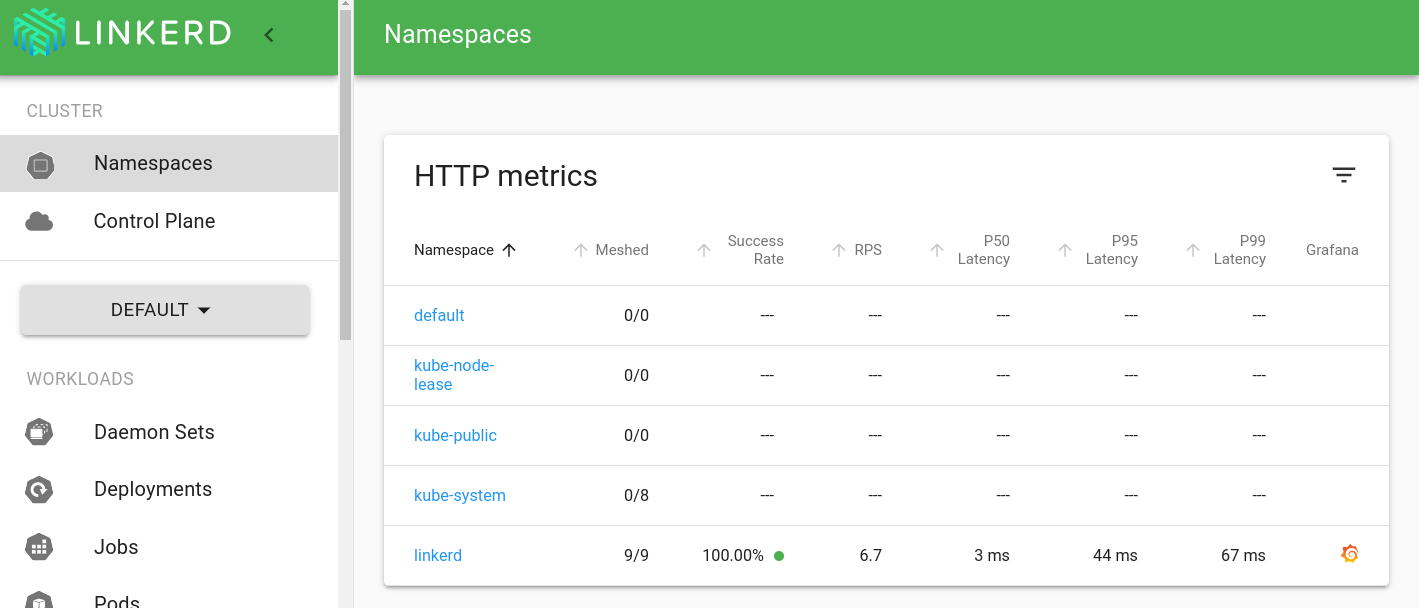
This command sets up a port forward from your local system to the linkerd-web pod. (It’s also possible to expose the dashboard for everyone to access.)
Because the control plane components all have the proxy installed in their pods, each component is also part of the data plane itself. This provides the ability to dig into what is going on with the control plane itself behind the scenes. In fact, you can run:
linkerd -n linkerd-viz viz top deploy/webThis is the traffic you’re generating by looking at the dashboard itself!
Step 5: Install the demo app
To get a feel for how Linkerd would work for one of your services, you can install a demo application. The emojivoto application is a standalone Kubernetes application that uses a mix of gRPC and HTTP calls to allow the users to vote on their favorite emojis.
Install emojivoto into the emojivoto namespace by running:
curl -sL https://run.linkerd.io/emojivoto.yml \
  | kubectl apply -f -
Before we mesh it, let’s take a look at the app. If you’re using Docker
Desktop at this point you can
visit http://localhost directly. If you’re not using
Docker Desktop, we’ll need to forward the web-svc service. To forward
web-svc locally to port 8080, you can run:
kubectl -n emojivoto port-forward svc/web-svc 8080:80Now visit http://localhost:8080. Voila! The emojivoto app in all its glory.
Clicking around, you might notice that some parts of emojivoto are broken! For example, if you click on a doughnut emoji, you’ll get a 404 page. Don’t worry, these errors are intentional. (And we can use Linkerd to identify the problem. Check out the debugging guide if you’re interested in how to figure out exactly what is wrong.)
Next, let’s add Linkerd to emojivoto by running:
kubectl get -n emojivoto deploy -o yaml \
  | linkerd inject - \
  | kubectl apply -f -
This command retrieves all of the deployments running in the emojivoto
namespace, runs the manifest through linkerd inject, and then reapplies it to
the cluster. The linkerd inject command adds annotations to the pod spec
instructing Linkerd to add (“inject”) the proxy as a container to the pod spec.
(See Automatic Proxy Injection for more.)
As with install, inject is a pure text operation, meaning that you can
inspect the input and output before you use it. Once piped into kubectl
apply, Kubernetes will execute a rolling deploy and update each pod with the
data plane’s proxies, all without any downtime.
Congratulations! You’ve now added Linkerd to existing services! Just as with the control plane, it is possible to verify that everything worked the way it should with the data plane. To do this check, run:
linkerd -n emojivoto check --proxyStep 6: Watch it run
You can now view the Linkerd dashboard and see all the services in the demo app. Since the demo app comes with a load generator, we can see live traffic metrics by running:
linkerd -n emojivoto viz stat deployThis will show the “golden” metrics for each deployment:
- Success rates
- Request rates
- Latency distribution percentiles
To dig in a little further, it is possible to use top to get a real-time
view of which paths are being called:
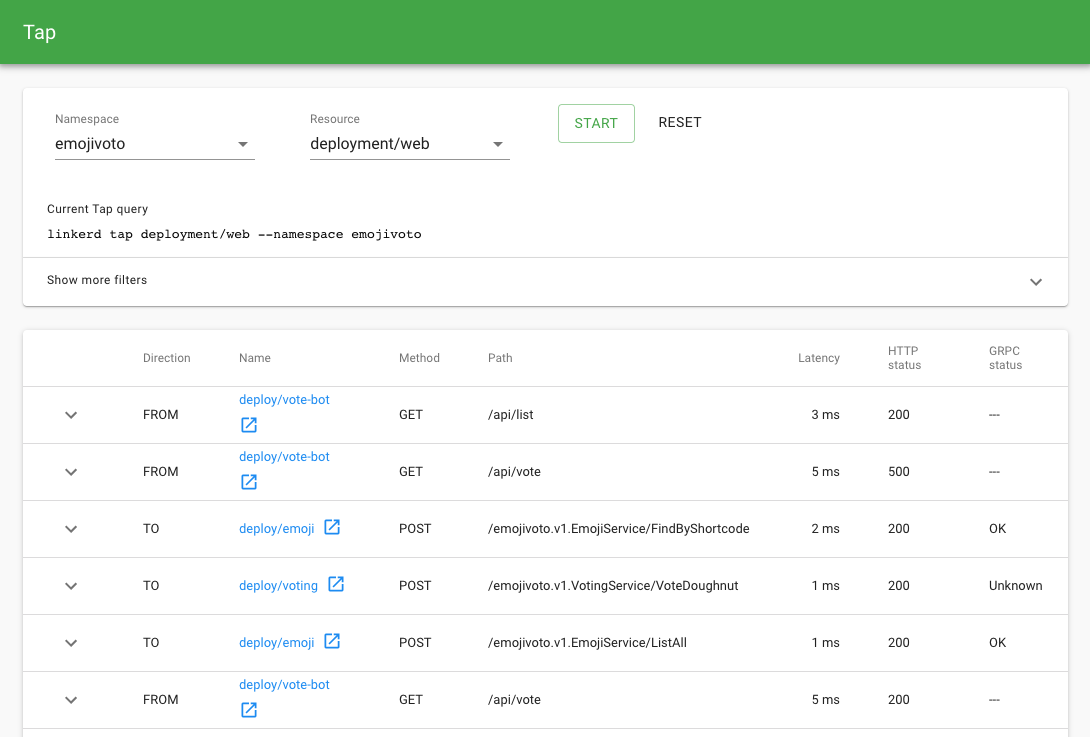
linkerd -n emojivoto viz top deployTo go even deeper, we can use tap shows the stream of requests across a
single pod, deployment, or even everything in the emojivoto namespace:
linkerd -n emojivoto viz tap deploy/webAll of this functionality is also available in the dashboard, if you would like to use your browser instead:
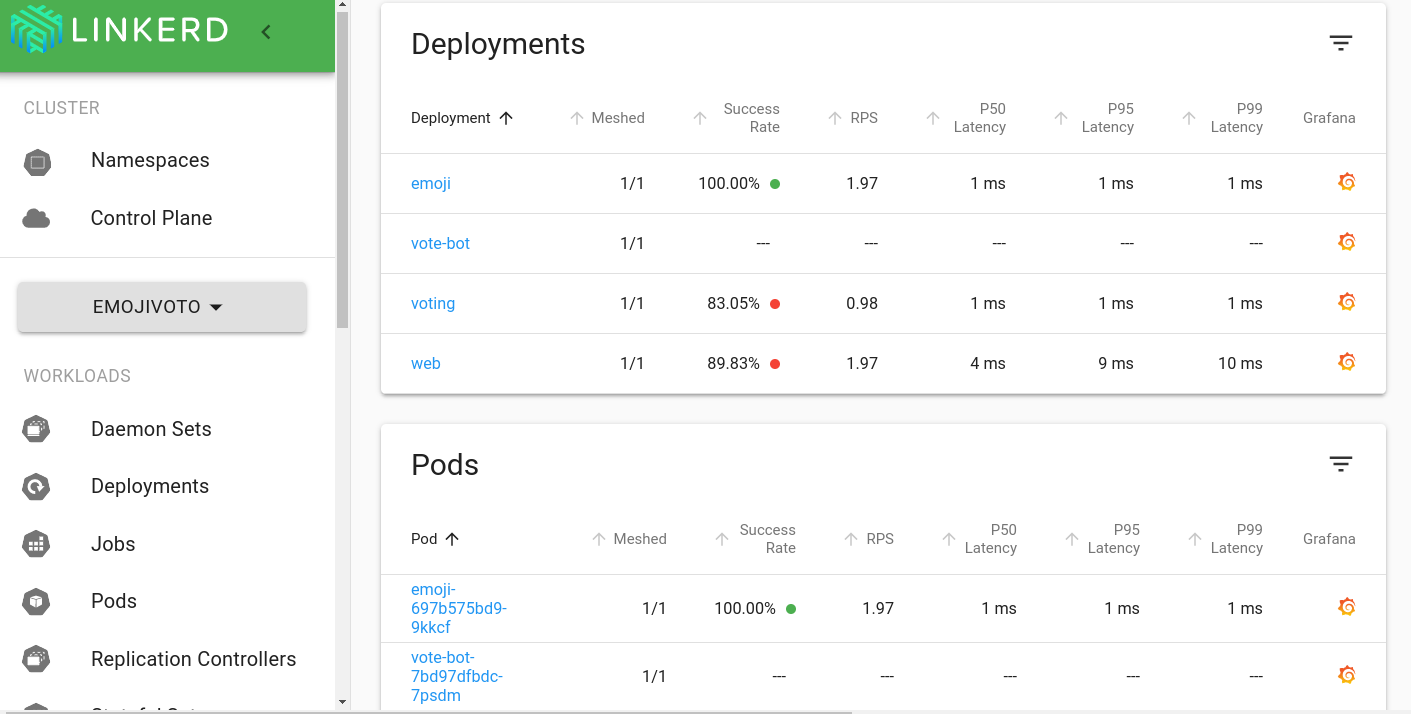
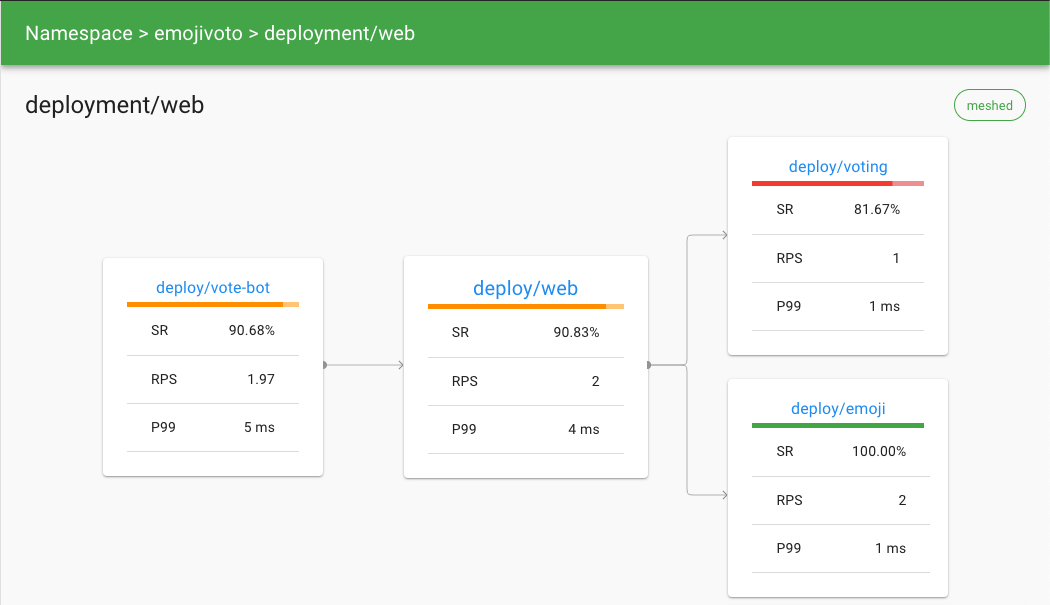
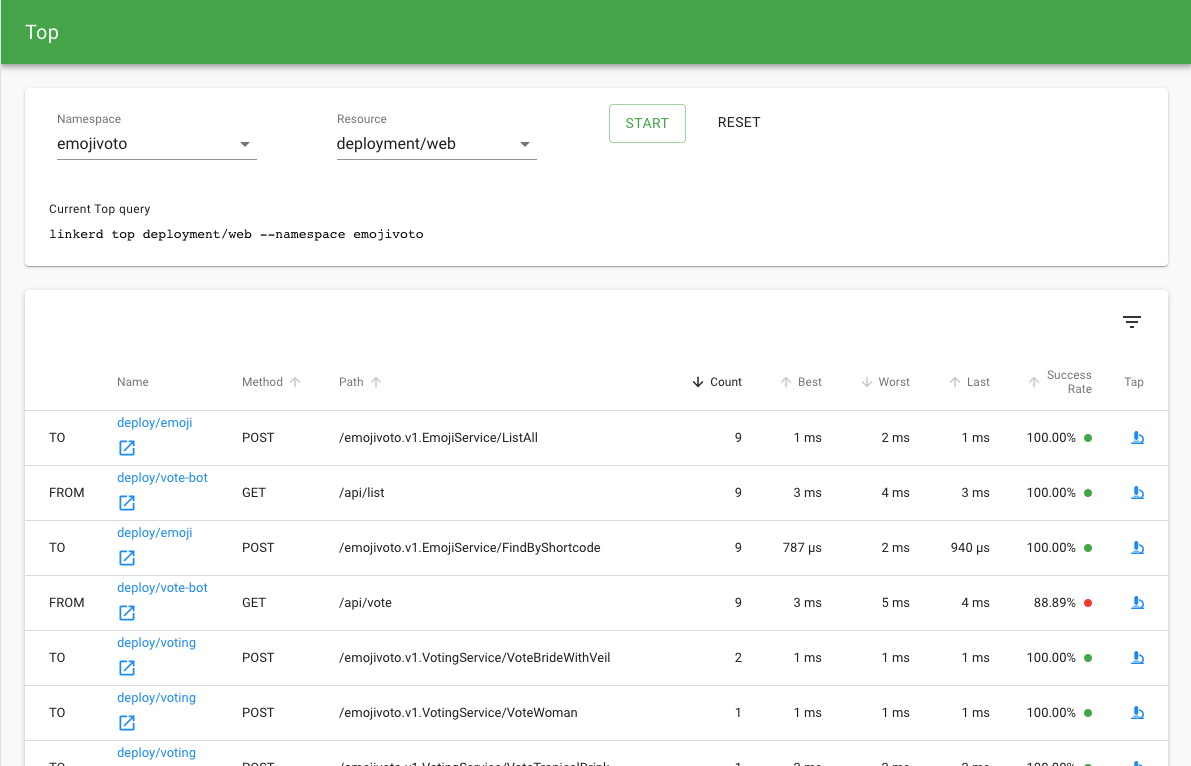
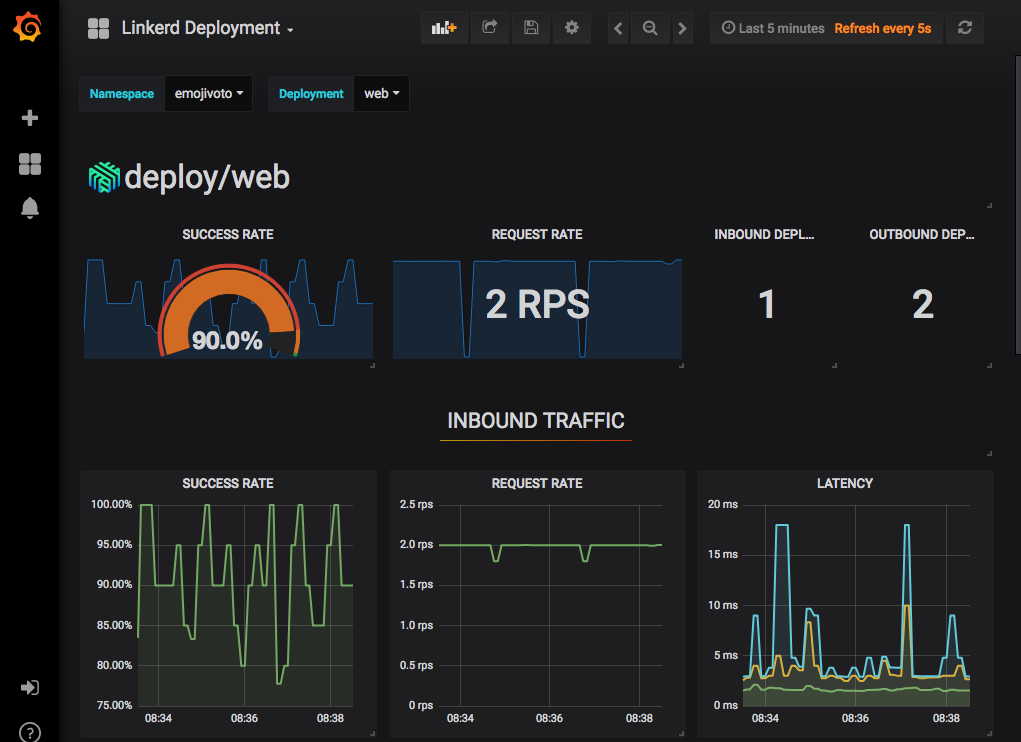
What about things that happened in the past? Linkerd includes Grafana to visualize the metrics collected by Prometheus, and ships with some pre-configured dashboards. You can get to these by clicking the Grafana icon in the overview page.
That’s it! 👏
Congratulations, you’re now a Linkerd user! Here are some suggested next steps:
- Use Linkerd to debug the errors in emojivoto
- Add your own service to Linkerd without downtime
- Learn more about Linkerd’s architecture
- Hop into the #linkerd2 channel on the Linkerd Slack
Welcome to the Linkerd community!